Intake forms and AI interviews, charted before the visit
Intake forms and interviews go out with the booking or before the visit. Forms score screeners like PHQ-9 and GAD-7 on submit, interviews take a history as a conversation, and both land on the chart.
Forms in the library, from registration to specialty questionnaires
150+
Validated instruments ready to import, from PHQ-9 to MDQ
12
Ready-made interviews, from Initial Health Intake to Functional Medicine
5
The largest PDF Ona will turn into a draft form for you
20 MB
What it does
Intake that's done, scored and on the chart.
01
Screeners that score themselves.
Import a validated instrument and it arrives with scoring, severity bands and flags set up. The score, band and any risk flag are on the chart the moment the patient submits, with Score trends over time.
Flags that weigh several answers, joined by and/or
The clinician who sent it is notified
Patients never see the points
02
Ona drafts the form for you.
Describe the form you want in the bar at the bottom of the builder, or drop in the PDF you use today, and Ona drafts it. Then tell Ona what to change, and Restore previous version takes it back.
Nothing is saved until you save
Ten kinds of question, from scales to matrices
Or start from 150+ library forms
03
Patients finish it before they arrive.
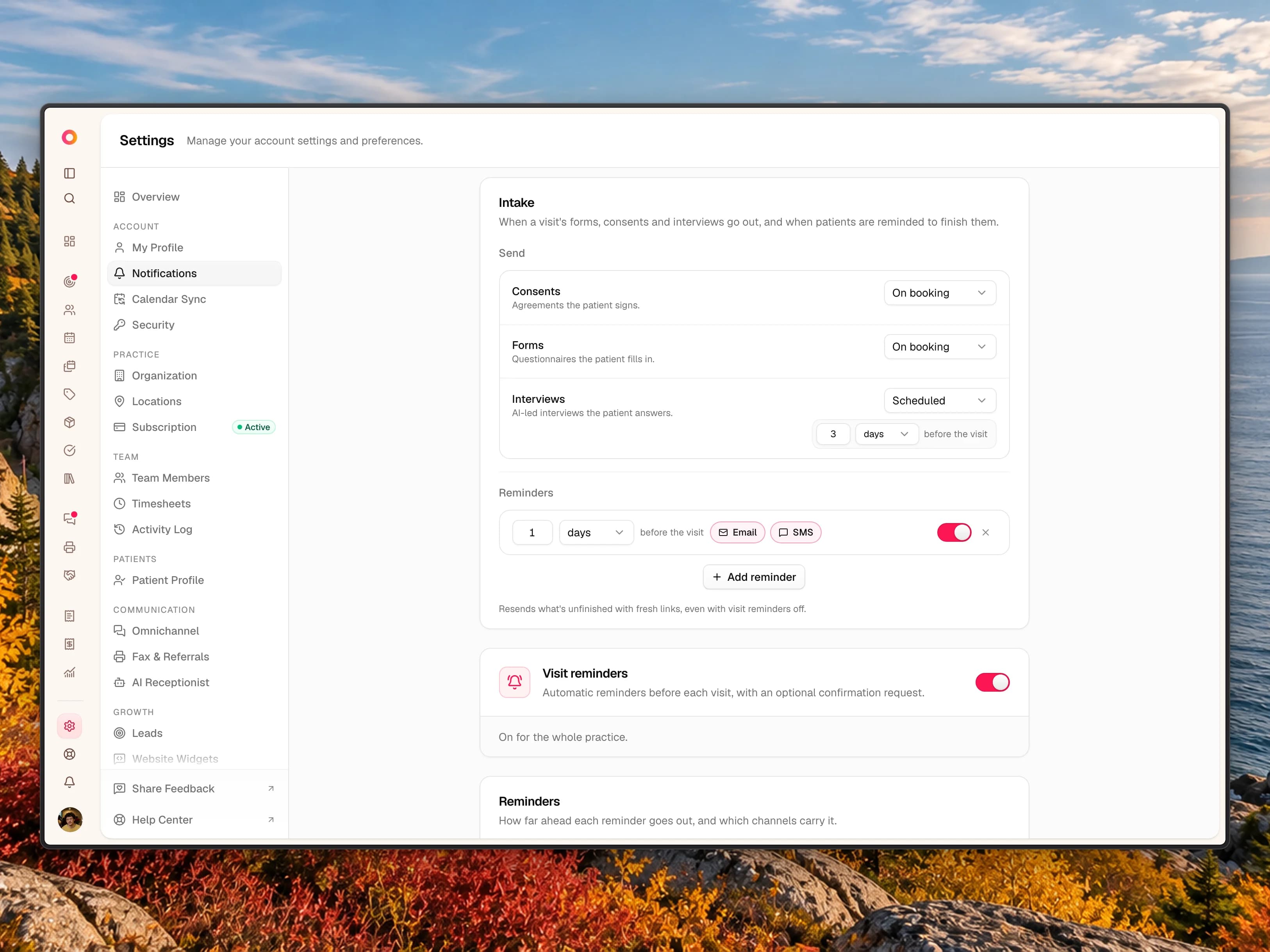
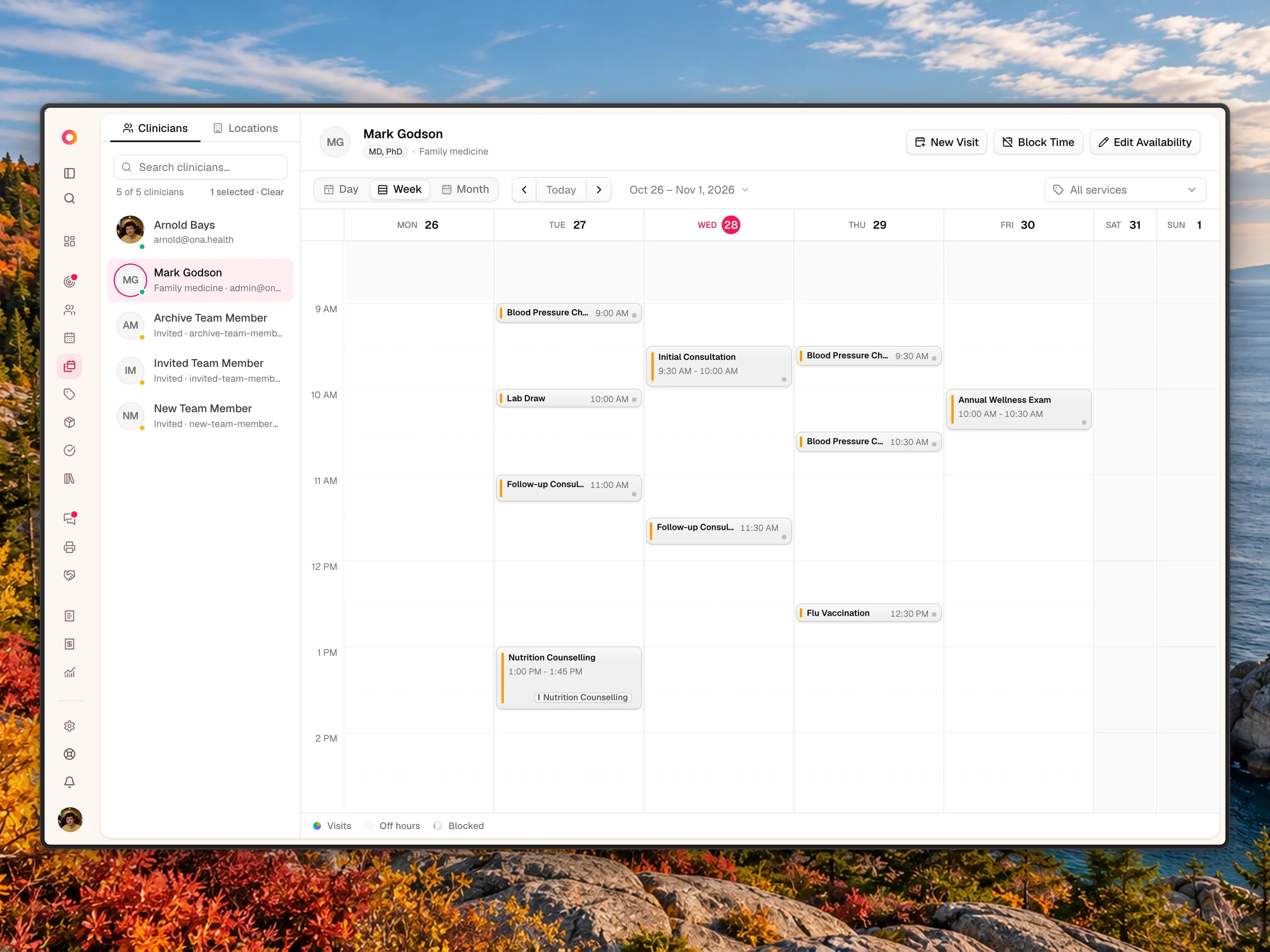
Attached to a service, forms and interviews go out with the booking or a set time before the visit. Patients open a link that checks their date of birth, see what's left, and start the next item from the last screen.
Next unanswered jumps to each open question
A parent can sign on the patient's behalf
Reminders chase anything unfinished
Two ways
A form or an interview.
Interviews
A conversation that adapts.
Reach for this when the answer you need depends on the previous answer.
You describe the ground to cover. Ona runs it as a chat at the patient's own pace and asks the follow-up a fixed form could never have known to ask. Try out any interview yourself first; it writes no record.
Built from steps and subjects, not fixed questions
Patients can attach photos and PDFs as they answer
Returns a summary, the conversation and suggested records
Forms
A document that holds still.
Reach for this when every patient must see the same questions, or you need a score.
The same blocks in the same order, every time. The wording is copied when the form is sent, so editing the template later never changes what a patient already answered and signed.
Show if reveals follow-up questions only when needed
Optional scoring with severity bands and risk flags
Ends in a drawn signature
“The AI intake catches what patients won't volunteer in the first five minutes. By the time she's on my table, I already know what I'm walking into — and the visit actually starts where it should.”
Import a screener or one of five ready-made interviews, describe a form for Ona to draft, drop in the PDF you use today, or build from scratch. Everything stays editable.
Step 02
Attach it to a service
Add forms and interviews to the services they belong to. Booking that service sends them On booking or holds them until a set time before the visit. You can still send any item by hand.
Step 03
The patient completes it
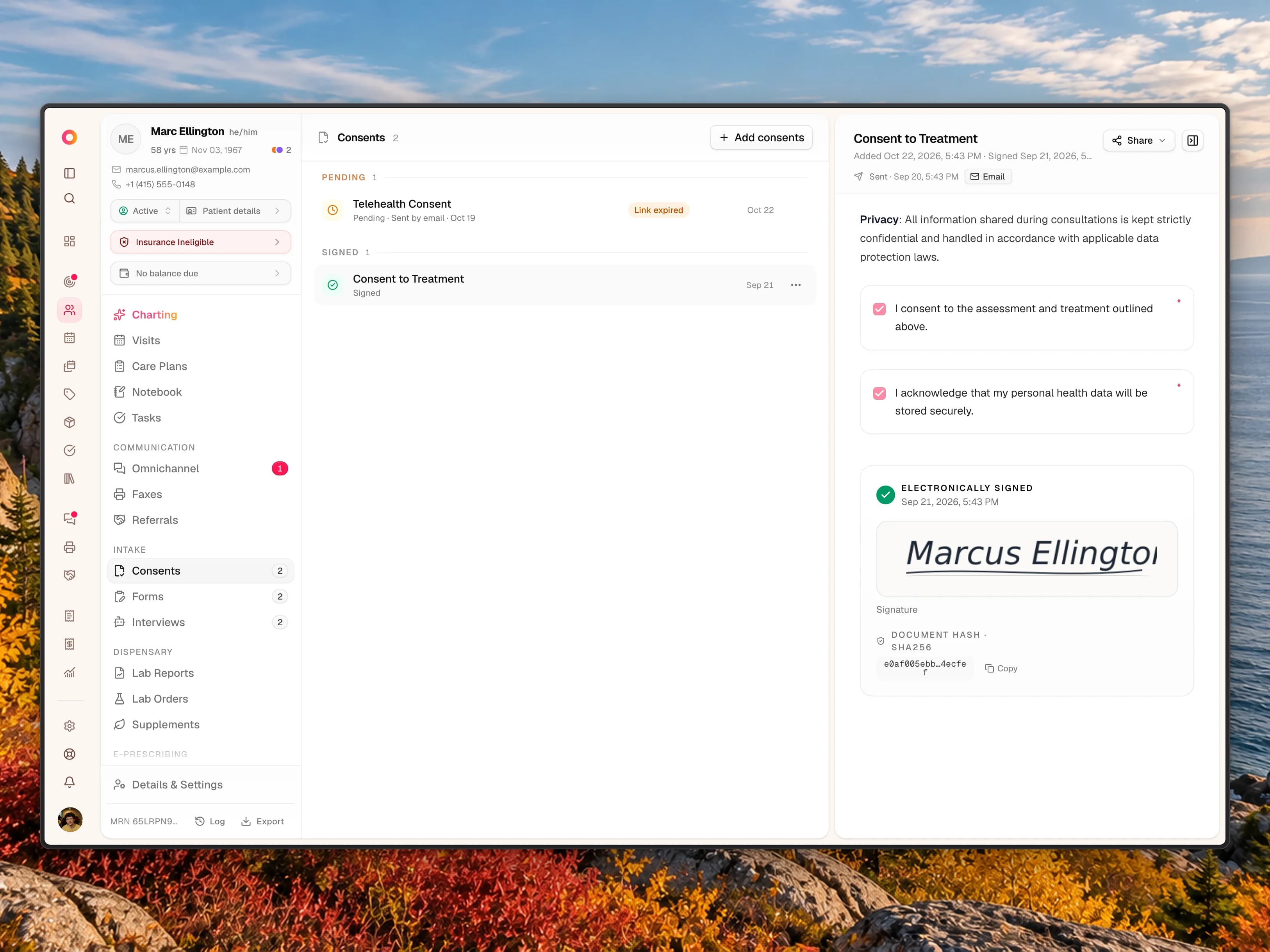
They open a link that asks for their date of birth, or find it in the patient portal. An interview is a chat; a form is read, answered and signed. In the clinic, hand them your device.
Step 04
You see what reached them
Each item shows when and how it was sent: by email, by text, or not at all. Copy the link, resend a fresh one, or let an intake reminder chase it.
Step 05
It lands on the chart
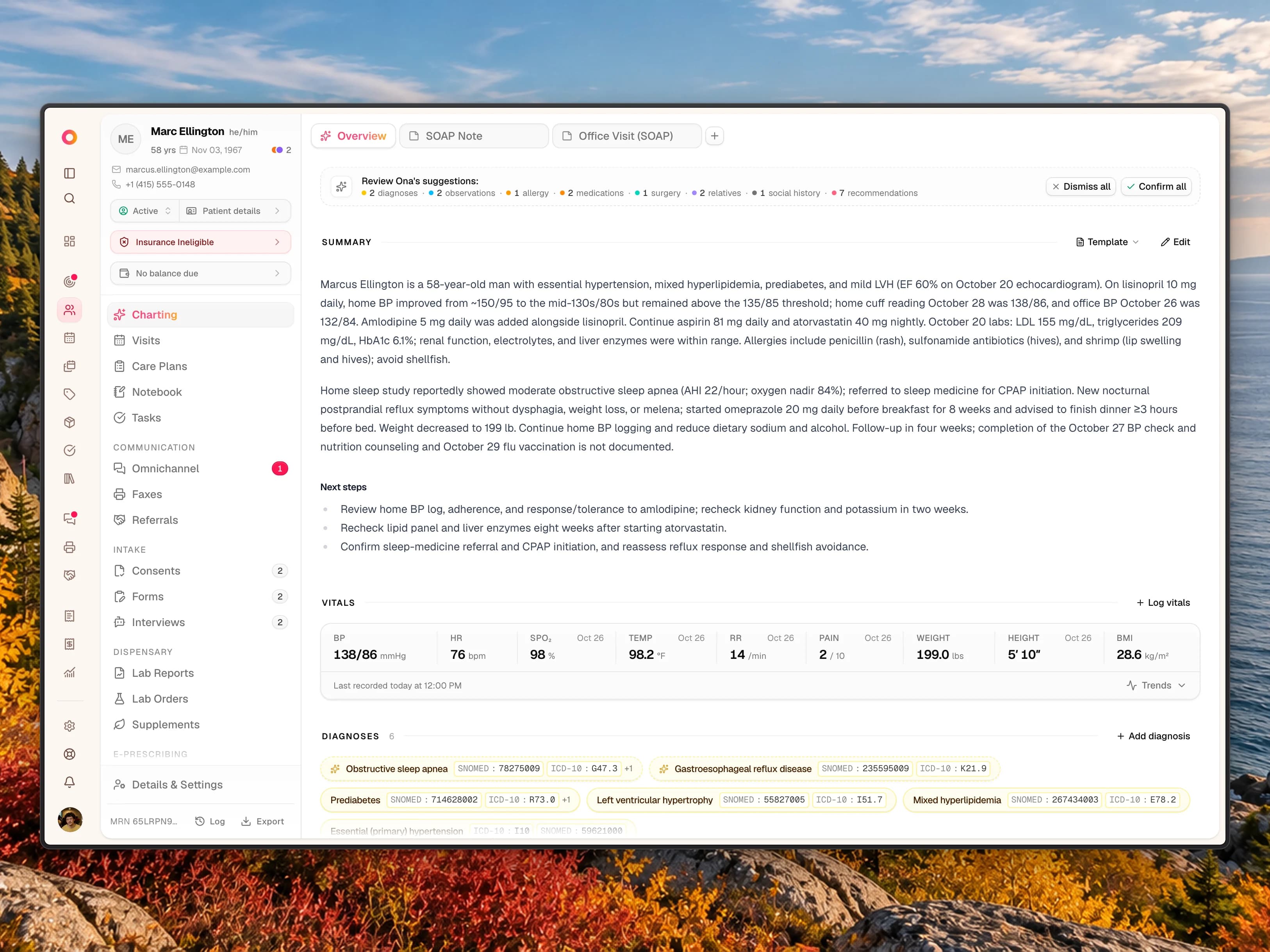
Under Intake on the patient's chart: the signed form with its score and flags, or the interview with its summary, transcript and suggested records. The clinician who sent it is notified.
Everything included
Intake that runs itself.
A summary and suggested records
Ona sums up each submitted form and finished interview as Working Well and Areas of Attention, and suggests diagnoses, medications, allergies and the history sections you've turned on, held until a clinician confirms them.
Screen before booking
Turn on Screening for a service and patients answer the form on your booking page before they can pick a time. They qualify by completing it or by reaching the score you set.
Finished in the clinic
Fill on this device for a form, Answer on this device for an interview. Hand over your tablet for one item at a time, with the dashboard hidden until a handoff screen.
See what reached them
Every item shows how it was sent, by email, by text or not at all, with Copy link and a resend that makes the old link stop working.
Paper when you need it
Export a completed form or interview as a PDF, fax it from the chart, or attach it to a referral. Print blank copy gives any library template a paper version.
The details you require
Under Settings → Patient Profile, set each patient detail to Off, Ask or Require, including Photo ID, so patients give what you need as they set up.
FAQ
Intake Forms, answered.
What's the difference between an intake form and an interview?
A form is a fixed document: the same questions in the same order for every patient, optionally scored, and signed at the end. An interview is a conversation: Ona covers the subjects you define, follows up on vague answers, and returns a summary plus the full transcript. Ona summarizes both and suggests chart records from both.
Which screening questionnaires come built in?
PHQ-9, GAD-7, MDQ, DASS-21, DASS-42, PCL-5, LEC-5, AUDIT, ASRS-v1.1, ACE-10, GDS-15 and SWLS, all but the LEC-5 scored, plus short screeners such as PHQ-2, GAD-2, AUDIT-C and the PEG Pain Scale among more than 150 library forms. You can also turn on scoring for any form you build.
Do patients need an account to complete intake forms?
No. Forms and interviews go out as a link that opens in any browser without signing in. When the patient has a date of birth on file, the link asks for it before showing anything and doesn't expire; without one it opens without the check and expires after 14 days. Resending makes the old link stop working. Patients with a portal login also find them in the portal.
Can we bring over our existing PDF intake forms?
Yes. Start a new form and drop the PDF, up to 20 MB, into the bar at the bottom of the builder, and Ona drafts the form for you to review before saving. Interviews are built from steps and subjects, so they can't be drafted from a PDF.
When do intake forms go out?
In the Intake card under Settings → Notifications you choose, separately for consents, forms and interviews, whether intake goes out On booking or Scheduled a set time before the visit. Each service can override that. Rescheduling the visit moves the send time, and cancelling it withdraws anything not yet sent.
What does the clinician see after a form or interview?
A submitted form opens on Summary, with the score card, flags and Ona's Working Well and Areas of Attention, then Form and Clinical Records. A finished interview has Summary, Conversation and Clinical Records. Suggested records stay flagged until a clinician confirms them.
Is Ona's intake HIPAA compliant?
Answers, conversations and signed forms are encrypted in transit and at rest and stored on the patient's chart. Every practice signs Ona's BAA when the workspace is created.
Walk into every visit already caught up.
Book a demo and we'll send a real PHQ-9 and interview, then open them on the chart.