Edit a patient's details
Patient chart1:14
The guide
Transcript
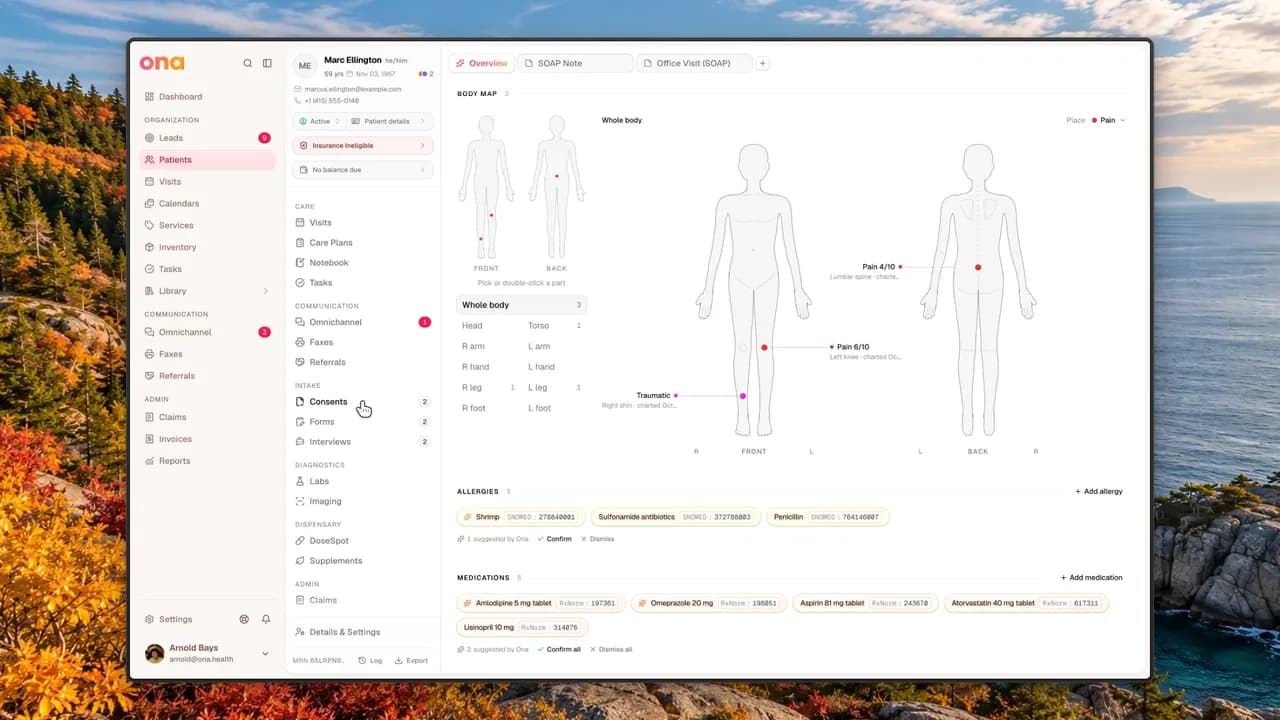
Here's how to review and change a patient's details and settings. From Patients, open a patient's chart. Select Patient details to see everything about them at a glance.
The status shows whether they're receiving notifications. To change anything, open Details and Settings. Under Personal, add a preferred name and pronouns.
Under Contact, choose how your team and automations reach them. Turn on text consent only when they've agreed to automated texts. Send invitation gives them access to the patient portal.
Insurance, payment method and guardians each have their own section. To keep your edits, select Save changes.
That's it. The new details now show across the chart, and on every visit.