Send forms and consents
The guide
Transcript
Here's how to send forms and consents. Patients complete them at home, or at the clinic. Open Patients in the sidebar, then choose the patient you're sending paperwork to.
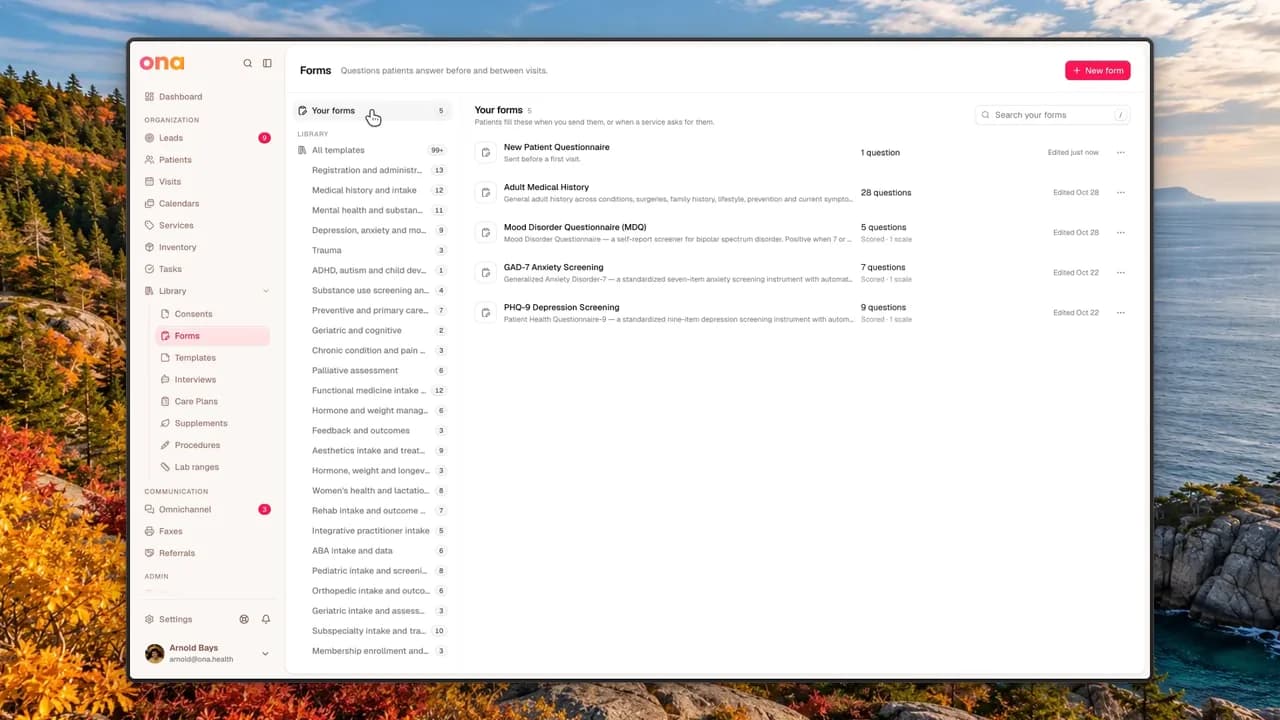
Under Intake in their chart, open Forms to see what they've been sent and filled in. Select Add forms, and pick one or more forms from your library. The arrow on Send to patient lets you send it now, or pick a time.
Then select Send to patient. Ona emails and texts them a secure link. If they're with you, choose Fill on this device instead, and hand them the screen.
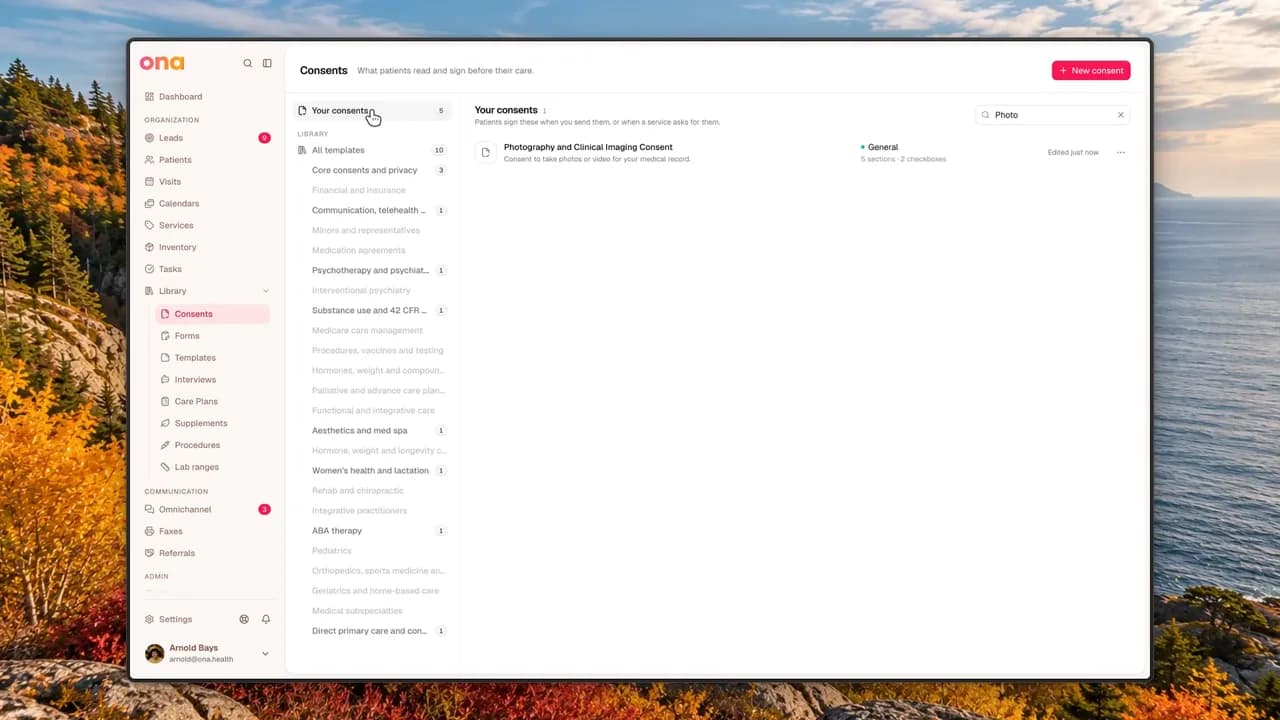
Consents work the same way. Open Consents under Intake, then select Add consents at the top. Pick the consent, then send it for their signature, or have them sign on this device.
That's it. What you send shows as Pending on their chart until the patient fills it in.